Object Tool Kit Illustration: A Practical Visual Resource for Clear Communication and Consistent Design
When you’re building a user manual, designing an instructional app, or crafting a branded DIY guide, visual clarity isn’t optional—it’s foundational. The Object Tool Kit Illustration set meets that need precisely: a curated collection of clean, modern vector illustrations depicting common tools and equipment used in repair, construction, maintenance, and hands-on learning. Unlike generic clipart or photorealistic assets that can overwhelm or distract, these illustrations prioritize legibility, scalability, and intentional design—making them functional first, decorative second.
Where This Set Fits Into Real Workflows
This isn’t just another graphics pack dropped into a folder and forgotten. The Object Tool Kit Illustration set integrates naturally at multiple points across planning, production, and delivery phases—especially where accuracy, consistency, and audience comprehension matter.
Before a project begins—say, when drafting a safety training module or outlining a hardware installation workflow—you’ll use the illustrations to map out steps visually during storyboarding. Their clear shapes and uniform style help stakeholders quickly grasp scope and sequence without misinterpretation. During execution—whether you’re editing a PDF manual in Adobe InDesign or building interactive tooltips in Figma—the editable vector files (AI and SVG) let you adjust color, scale, and alignment on the fly, matching brand guidelines or layout constraints without pixelation or rework. After launch, when updating content or repurposing assets for social media, print handouts, or multilingual versions, the transparent-background PNGs ensure seamless layering across platforms and formats.
Compatibility That Supports Your Existing Tools and Processes
You don’t need to overhaul your toolkit to use this set effectively. It works within familiar ecosystems: Illustrator for deep vector edits, Photoshop for compositing with photos, Canva for quick web-ready graphics, or even PowerPoint for internal presentations. Because each illustration is fully isolated and built with clean paths—not rasterized effects or embedded fonts—you retain full control over stroke weight, fill opacity, and grouping logic.
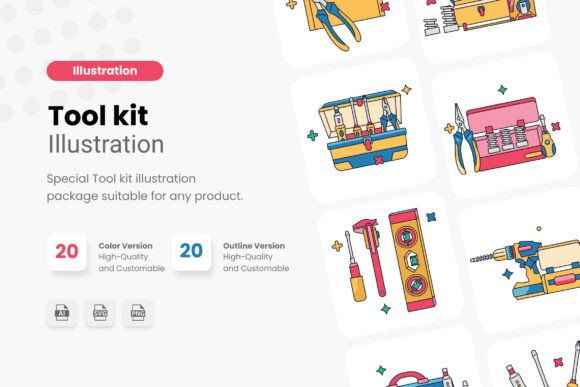
The set includes 10 distinct tools—think wrenches, screwdrivers, tape measures, pliers, levels, and utility knives—each delivered as individual SVG and PNG files plus a consolidated AI file. That structure supports both granular selection (e.g., pulling just the torque wrench for a mechanic’s checklist) and batch handling (e.g., importing all SVGs into a design system library). No naming inconsistencies, no mismatched line weights, no surprise transparency issues—just predictable, production-ready assets.
Practical Implementation Tips for Different Roles
- Technical writers and educators: Use the illustrations to replace ambiguous text descriptions (“tighten with appropriate tool”) with unambiguous visuals. Pair a labeled SVG of a hex key with step-by-step annotations in a PDF manual—then reuse the same asset in a video thumbnail or LMS slide.
- UI/UX designers and app developers: Drop the SVGs directly into component libraries. Their consistent stroke width and negative space make them ideal for iconography in tool-selection interfaces or progress indicators tied to physical tasks.
- Marketers and small business owners: Build cohesive campaign assets fast—e.g., a “Tool Up Your Workshop” email series using coordinated illustrations across banners, product cards, and social posts. The transparent PNGs drop cleanly onto lifestyle photography or gradient backgrounds.
- Freelancers and agencies: Maintain client-specific branding by recoloring entire sets in under two minutes. Save custom swatches per project, then export updated PNGs for handoff—no need to ask clients to install fonts or plugins.
Organization and Efficiency Built In
Clutter slows down implementation. That’s why every file in the Object Tool Kit Illustration set follows a strict naming convention (e.g., wrench_flathead.svg, tape_measure_25ft.png) and ships with identical dimensions and canvas alignment. You won’t waste time resizing, centering, or troubleshooting clipping masks. And because all illustrations share the same visual language—consistent line weight, rounded terminals, balanced negative space—they scale together across mediums without looking disjointed.
This level of cohesion matters most when outputting for both screen and print. A 300 DPI PNG works flawlessly in a tradeshow brochure; the same SVG renders crisply on a 4K dashboard. No upscaling artifacts, no font substitution errors, no version confusion between “final-final-v3” files.
Long-Term Usability and Quality Control
Assets age. Fonts get deprecated. Raster files degrade with repeated saves. The Object Tool Kit Illustration set avoids those pitfalls by being 100% vector-native and free of external dependencies. There are no linked images, no embedded JPEGs, no placeholder layers—just pure, editable paths. That means five years from now, you can still open the AI file in a future version of Illustrator and modify it without compatibility warnings or missing assets.
Quality control also extends to licensing and distribution. All illustrations are original, exclusive to Creative Fabrica, and provided with clear usage terms. You’re free to use them commercially in client work, digital products, or printed materials—but redistribution or resale of the files themselves isn’t permitted. That exclusivity protects your investment and ensures your visuals stand out rather than blend in with stock-heavy competitors.
Integrating Smoothly Into Your Routine
Start small. Pick one recurring task where visuals add value—like creating weekly maintenance checklists for facility staff—and swap in three illustrations from the set. Notice how much faster the document gets approved, how much less follow-up you get on ambiguous instructions, and how often team members reference the visuals instead of asking clarifying questions.
Then expand. Add the SVGs to your design system’s icon category. Create a reusable Figma component that auto-adjusts color based on mode (light/dark), then publish it for your team. Or build a simple Notion database linking each tool illustration to its common use cases, torque specs, and safety notes—using the PNGs as thumbnails.
None of this requires new software, new training, or new permissions. It only asks that you treat illustration not as decoration, but as documentation—a precise, reusable part of your communication infrastructure.
Final Considerations Before You Begin
Ask yourself: Where do users currently pause, reread, or misinterpret your instructions? That’s your highest-leverage point for introducing these illustrations. Also consider accessibility—pair each visual with concise alt text in digital contexts, and ensure contrast remains sufficient when recolored for dark mode or colorblind-friendly palettes.
Finally, remember that consistency compounds. Using the same wrench illustration across your website, support docs, and packaging doesn’t just look professional—it builds recognition, reduces cognitive load, and reinforces trust. The Object Tool Kit Illustration set gives you that foundation without demanding extra time or expertise.
All files must be downloaded directly from Creative Fabrica. Sharing the page link is encouraged—but please respect the licensing terms and avoid distributing the files themselves.